

We're looking forward to meeting with you!
A virtual appointment is an online appointment conducted over Microsoft Teams. You’ll be speaking one-on-one with one of our employees, just like you would for an in-person visit.
Join a Teams meeting on the web:
- In your email invite, select Click here to join.
- Type your name, choose your audio and video settings and select Join Now.
You can also dial in using your phone, the number is listed at the bottom of your invite email.
Join a Teams meeting from the app:
- From your calendar, select Join.
- Turn on your camera and choose your audio settings.
- Select Join Now.
This meeting is locked
This meeting is locked
If you see this message, reach out to the meeting organizer to let them know you're having trouble joining.

Sorry, no one has responded to your request to join.
Sorry, no one has responded to your request to join.
If you get this message, your request may have timed out. Check to make sure you're joining from the correct meeting link and try again or reach out to the meeting organizer.

My camera isn't working.
My camera isn't working.
- Check for updates. Make sure you have the latest Windows update or Mac OS update and Teams app version installed. To check for updates in Teams, go to your profile picture in the upper-right of the Teams app and select Check for updates. Updates install in the background if they are available.
- Check if your camera is in use. To make sure you can use your camera in Teams Close all other apps that might be using your camera (like Skype or FaceTime). If you’re using an external camera, try unplugging it and plugging it back in.
My microphone isn't working.
My microphone isn't working.
If others can't hear you in Teams, you might be having an issue with your microphone. Here are some solutions to try:
- Check for updates. If others can't hear you in Teams calls and meetings, or audio from your microphone isn't being detected, first make sure you have the latest Windows update or Mac OS update and Teams app version installed.
- To check for updates in Teams, go to your profile picture in the upper-right of the Teams app and select Check for updates. Updates typically install in the background if they're available.
- Check if your microphone is in use. To make sure you can use your microphone in Teams, close all other apps that might be using your microphone (like Skype or FaceTime). If you’re using an external microphone, try unplugging it and plugging it back in.
Audio quality is poor.
Audio quality is poor.
If your computer is running a lot of applications, you may experience issues with sound quality, like lagging or cutting out. If this happens, closing other applications may resolve it.
Volume is low.
Volume is low.
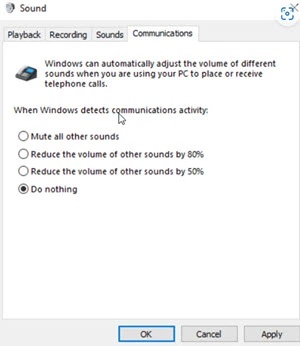
If you’re using Windows, other sounds from your device (like notifications and alerts) are reduced in volume when you join a Teams meeting.
To fix this, go to your system's sound settings, find your Sound Control Panel, select Communications and then select Do nothing (see below) and click OK.
Subject to membership eligibility requirements. Loans subject to credit approval. Borrower must be a resident of Indiana or Michigan, and for home loans property must be in Indiana or Michigan. All credit union programs, rates, terms, and conditions may change without notice.