

Mortgage Support Center
Empower your home loan journey.
Find the information you need to finish your mortgage application, find the right mortgage originator, or get some home-buying tips.
Need help along the way? You can chat with a live agent during business hours. Simply click the Let’s Chat button and select Mortgage Live Agent to connect with a mortgage professional who can answer your questions in real time.
Create an account in the loan portal
Create an account in the loan portal
Create an Account Instructions
- You can click here to be taken to the loan portal, or click on the Click Here button in the initial email you received.
Please Note:- When creating your account, you must use the same email address where you received the initial email, even if there are multiple borrowers on the loan.
- Multiple borrowers can use the same email address.
- Each borrower must create their own individual user account. Multiple borrowers cannot share one user account.
- Save the email so you can use it to log into the portal throughout the loan process, OR save the portal web address to your favorites bar in your browser.
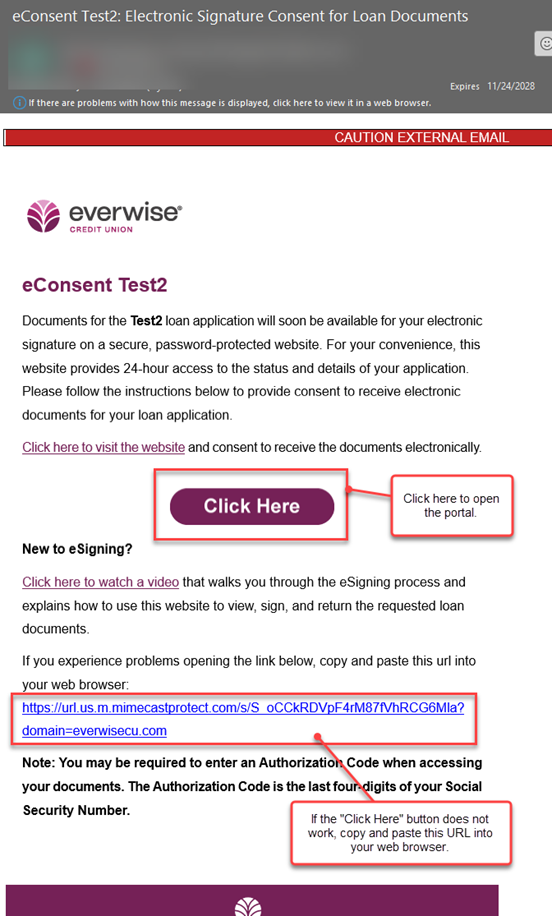
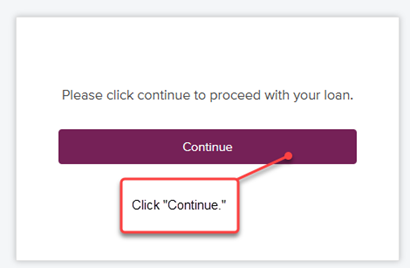
- A browser will open with the screen below. Click continue.
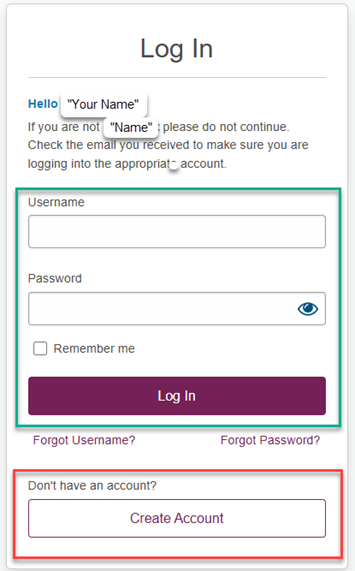
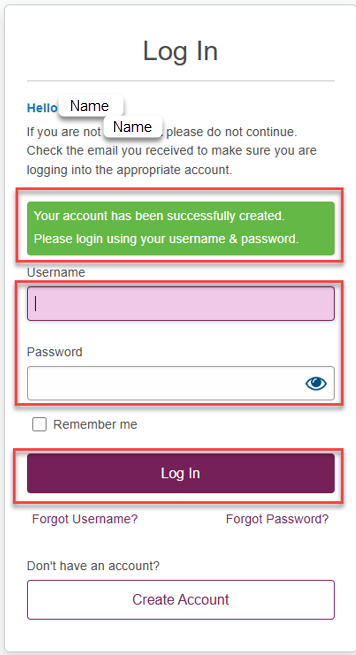
- This is the “Create Account/Log In” screen. Note: This is NOT your online banking login. Your name should appear in the greeting (example below.
- If this is your first time logging into this loan portal, you must create an account (outlined in red).
- This is an individual account. It cannot be shared with a coborrower. Every borrow must have their own individual login and password.
- If you have already created an account and password you can go directly to username and password then click the “Log In” button (outlined in green).
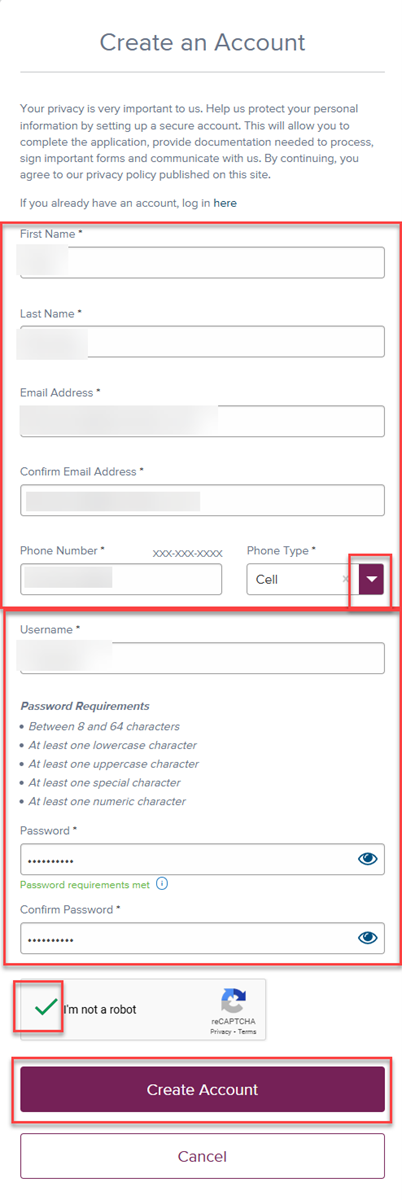
- If this is your first time logging into this loan portal, you must create an account (outlined in red).
- Create your account.
- First Name
- Last Name
- Email Address
- Confirm Email Address
- Phone Number
- Phone Type
- Create a Username
- Create a Password (following the requirements)
- Check that you are not a robot
- Click Create Account
- You will see a green message (below) that your account has been successfully created. Please log in using your username and password.
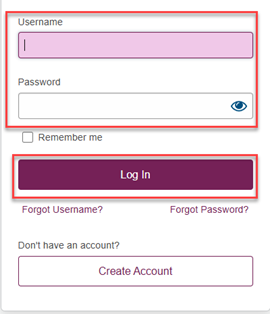
- Input your username and password
- Click Log In
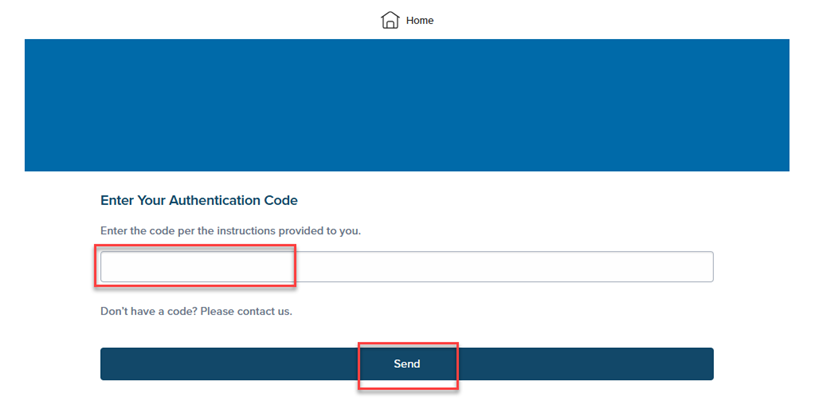
- Input your authorization code as described in your initial email. These are the last 4 digits of your social security number. Click Send.
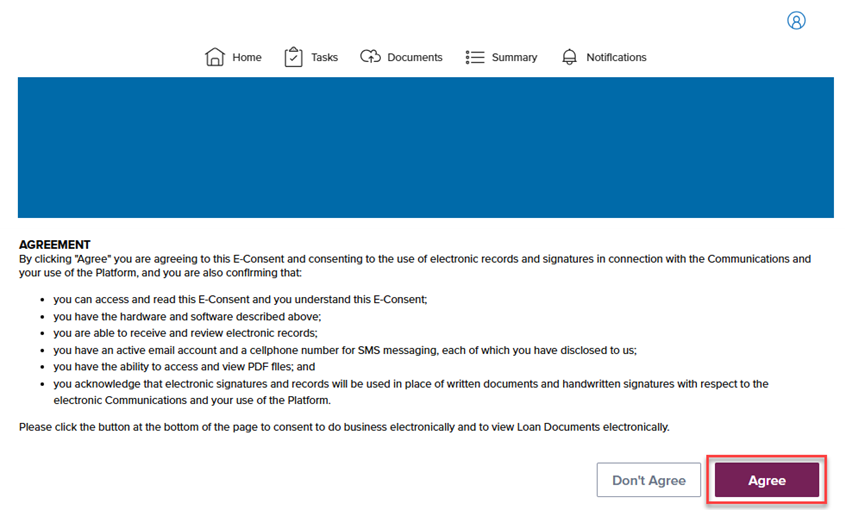
- The first item to complete is accepting your e-consent agreement. Click Agree.
- This is a long document, be sure to scroll down to the bottom of the page.
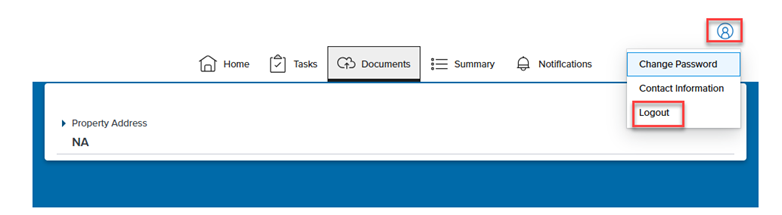
- Log out
Upload documents
Upload documents
If you have not already created an account, please review the Create an Account guide first or visit the loan portal login page.
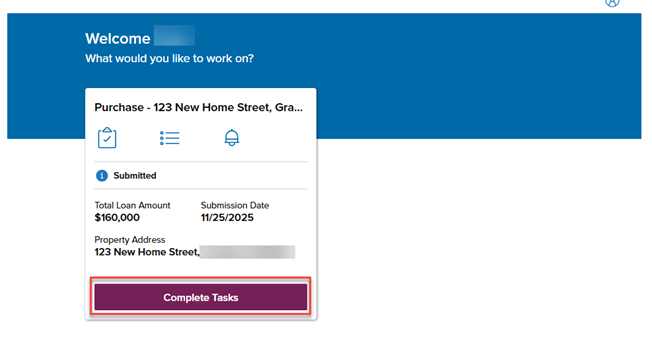
- When you log in, click on the list icon.
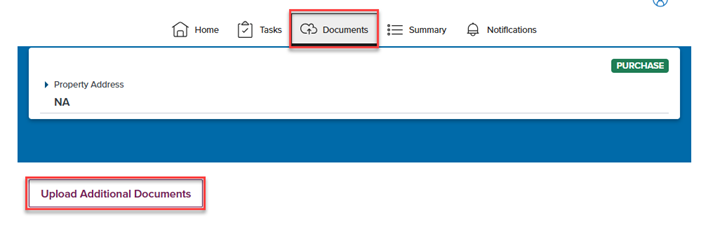
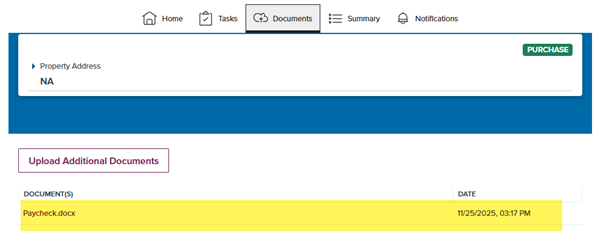
- This opens the task menu. Click on Documents.
- Click on Upload Additional Documents.
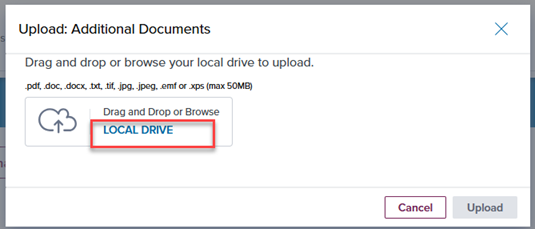
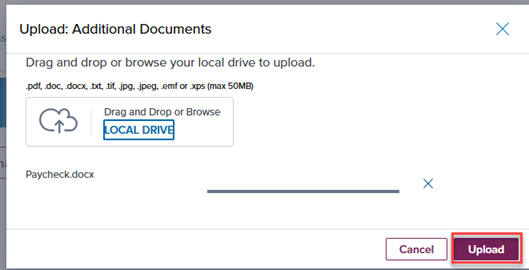
- Click on Local Drive or drag and drop your documents here.
- Choose your documents and click open.

- Click upload.
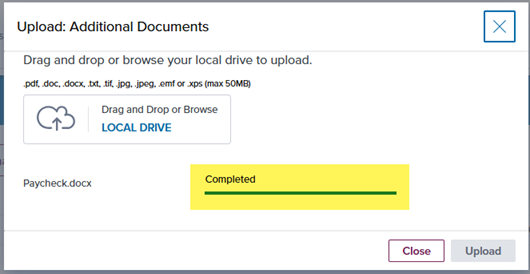
- This shows the upload is completed.
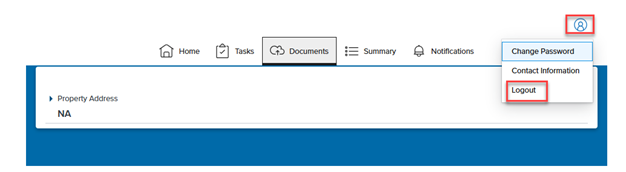
- When you're finished uploading your documents, click on your profile icon in the upper-right of the screen and selet Logout.
Complete and sign your eSign documents
Complete and sign your eSign documents
If you have not already created an account, please review the Create an Account guide first or visit the loan portal login page.
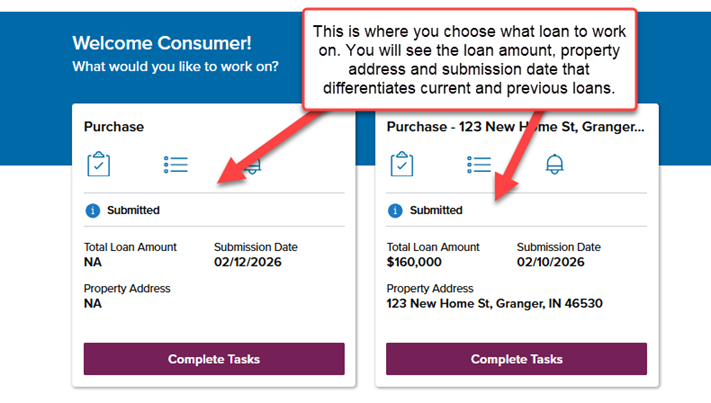
- From the landing page, select Complete Tasks.
- Click on the Review & Sign tab and select View Full List.
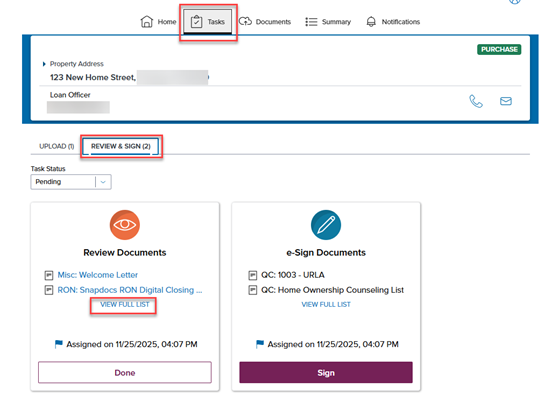
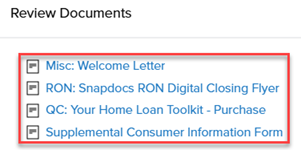
- Select each document to review.
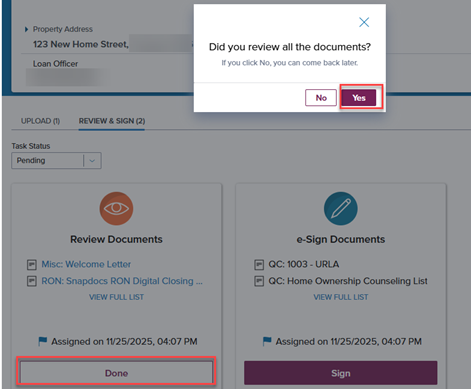
- When finished reviewing, click Done then Yes.
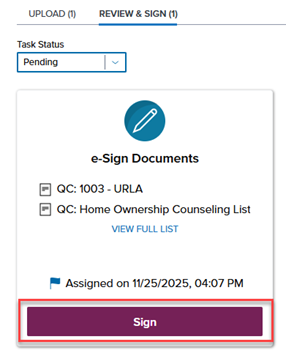
- Click Sign, then Start eSign session on the dialogue box that appears.
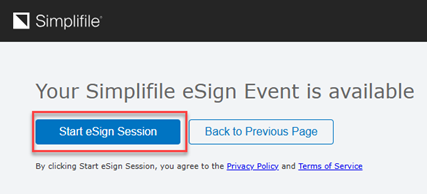
- Select Click to get started.
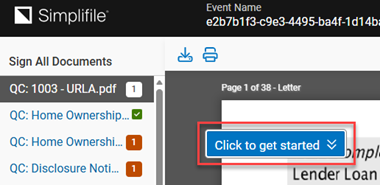
- Select your signature and initials, then click Create Signature.
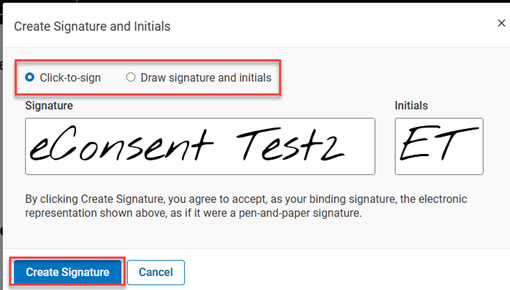
- Proceed through the entire package and click Click to Sign.
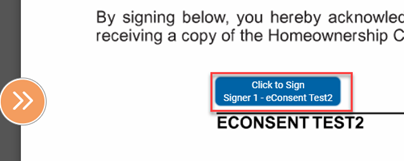
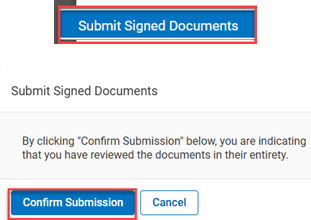
- When finished, click Submit Signed Documents and Confirm Submission.
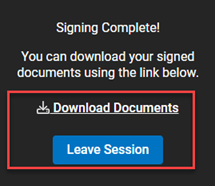
- You can choose to download your documents or leave the session.
- Your tasks are now complete!
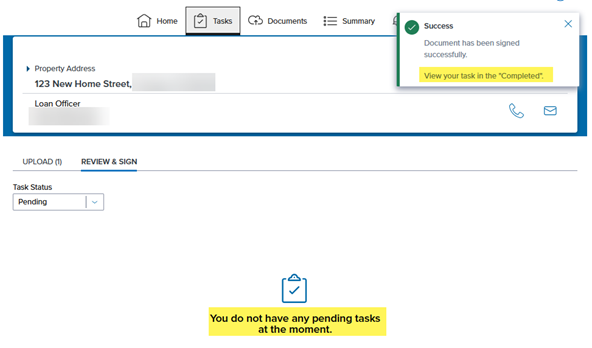
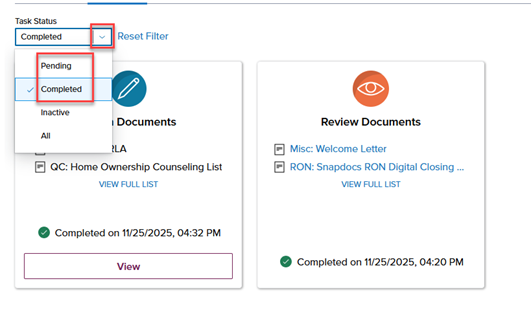
- You can view your completed items here.
Complete the asset verification process
Complete the asset verification process
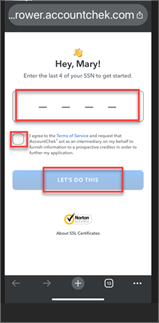
- Enter the last four digits of your social security number. Review the terms and agree to proceed.
- Click Let's do this.
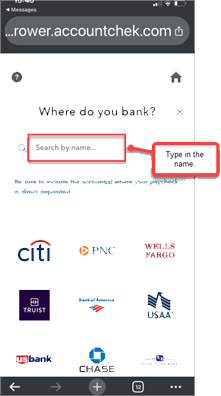
- Search for the name of your financial institution.
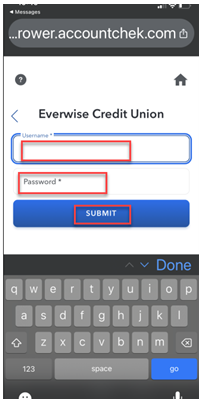
- Enter your username and password to your online banking account and then click submit.
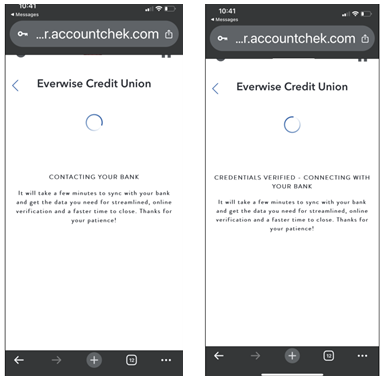
- Your account will be contacted and verified.
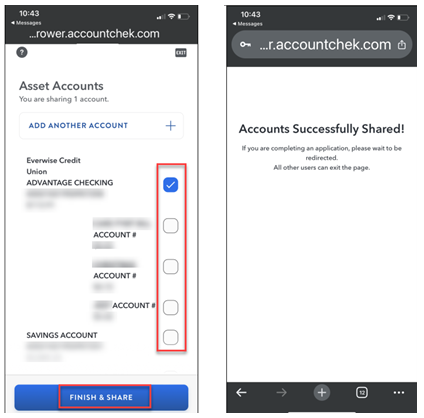
- Choose the accounts you want to share information on.
Reset your loan portal account
Reset your loan portal account
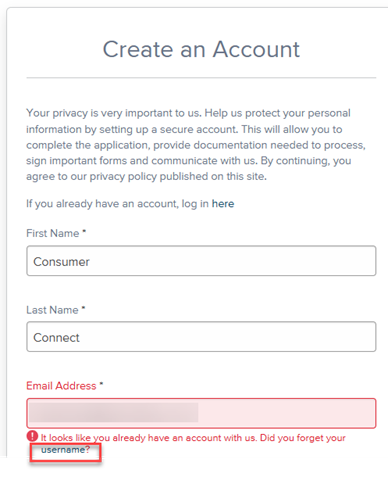
- When you see this message in red below it indicates that the first and last name along with the email address recognizes a user account already exists.
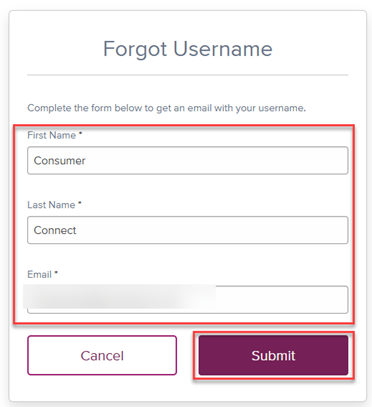
- Enter name, email, and submit.
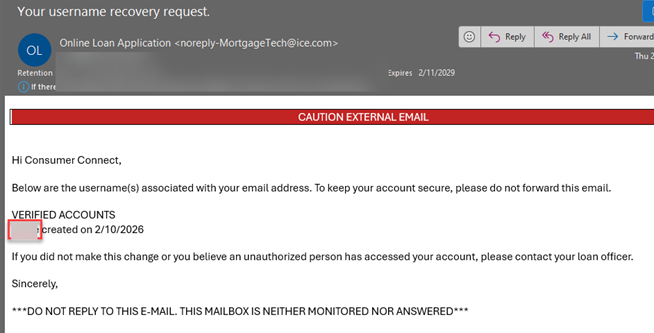
- An email will be sent to your email address with your username.
- Enter your username, choose "Forgot Password," and walk through the steps.
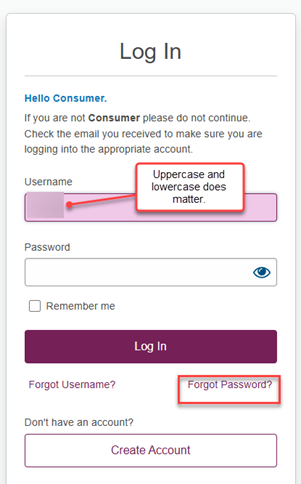
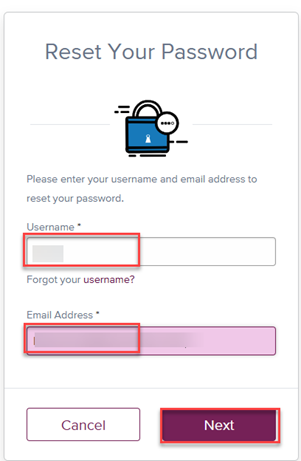
- Choose an option.
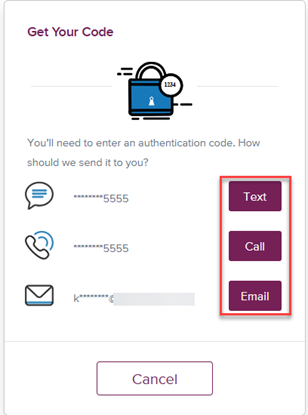
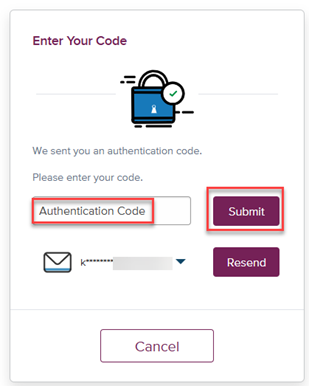
- You will receive an email with an authentication code. Enter the code and submit.
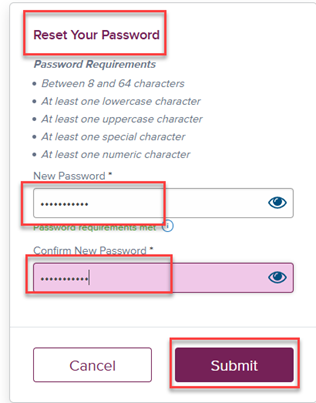
- Create new password.
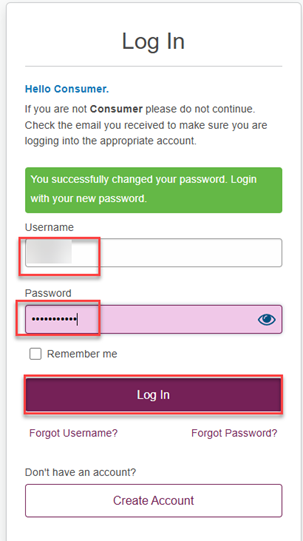
- Log in with your username and new pasword.
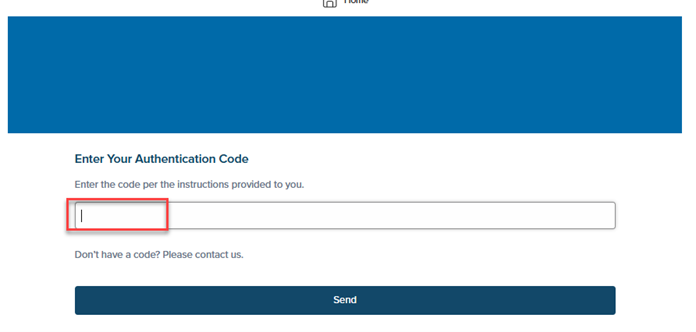
- Enter the last four digits of your Social Security number.

Owning a home is about having a place to call your own. But in a market with changing rates and prices, the financial side can feel heavy. You might find a house you love, plug the numbers into a calculator, and see a monthly payment figure. But does that number tell the whole story?

The economy is facing some tough times lately, and you’re probably feeling it. So how do you build financial resilience? We’ve got some ideas to help.

Buying a home is exciting, but costs go beyond the listing price. Discover the hidden expenses that often surprise first-time buyers in this article.

Home buying education
Learn the key steps, terms, and decisions involved in buying a home.
Subject to membership eligibility requirements. Loans subject to credit approval. Borrower must be a resident of Indiana or Michigan, and for home loans property must be in Indiana or Michigan. All credit union programs, rates, terms, and conditions may change without notice.