

Here are three great tools that make your life so much simpler. And more secure.
Mobile Card Lock
Mobile Deposit
Mobile Wallet
Card Connect
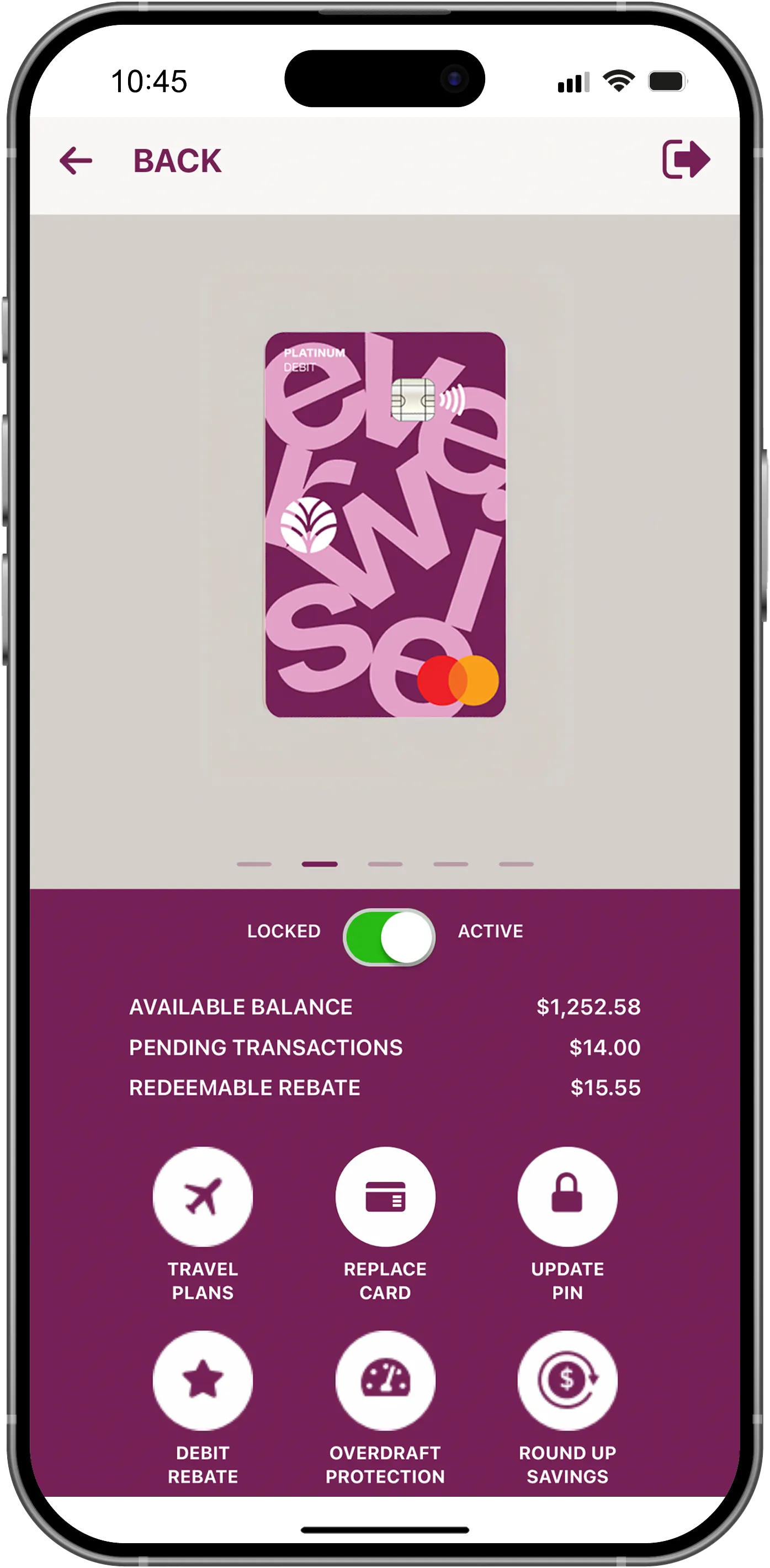
Mobile Card Lock
If you can't find your card or think it might be stolen, you can turn your card off in Mobile & Online Banking. Once you find it, simply turn it back on. Here's how:
- Log in to online banking, click Card Services from your navigation bar
- Select Manage Cards and swipe to the card that has been lost or stolen.
- Toggle the Locked/Active switch under the card image to the Locked position.
Your card will remain locked until you toggle back to the active position.
If you suspect your card was stolen, call us right away.
For Debit Cards
During business hours (7am-7pm on weekdays, 8am-1pm on Saturday):
After business hours (weekdays/weekends/holidays):
- Please call (800) 523-4175.
For Credit Cards
Call the 24-hour hotline at (888) 366-7072.
Additional help
More fraud guidance is available on our Security Information page including additional steps you should take if you believe you believe you have been a victim of fraud.
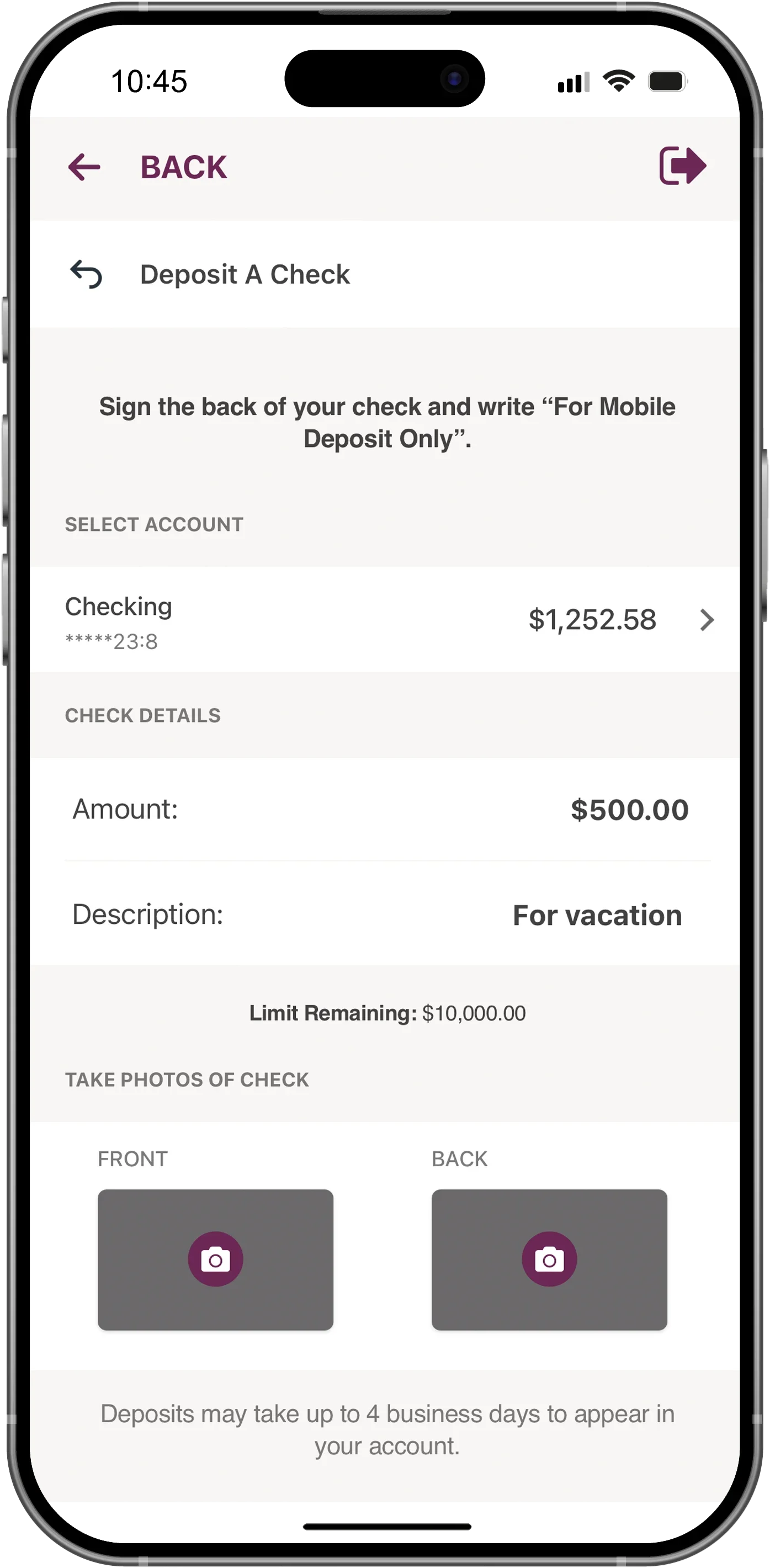
Mobile Deposit
Why make a mad dash to a branch just to deposit a check? With Mobile Deposit, you can snap a couple of pics of your check with the mobile app and you're on with your day.
The Deposit a Check service is available through mobile banking only.
- On your mobile device, tap the Services tab and select Deposit a Check.
- If you don't see Deposit a Check as an option, select Manage My Services and make sure the option is set to be visible.
- Tap the Deposit A Check button to get started.
- Choose the account for your deposit.
- Below your endorsement signature on the back of the check, write: For mobile deposit with Everwise Credit Union.
- Tap Front then place the check front-side-up on a flat surface and position your camera directly over the check.
- Take a picture of the front side of your check.
- Tap Back and repeat the process for the back side of your check.
- Enter the check amount and an optional description.
- Then, tap Submit Deposit.
Additional Guidelines
- Place your check within the guidelines of the phone's camera on a flat, solid, and dark surface. It is important to have a plain, neutral background without a pattern or texture.
- The check should lay as flat as possible, without any folds or creases.
- Do not use a flash, as it may affect the quality of the image.
- Make sure lighting is optimal, without any shadowing.
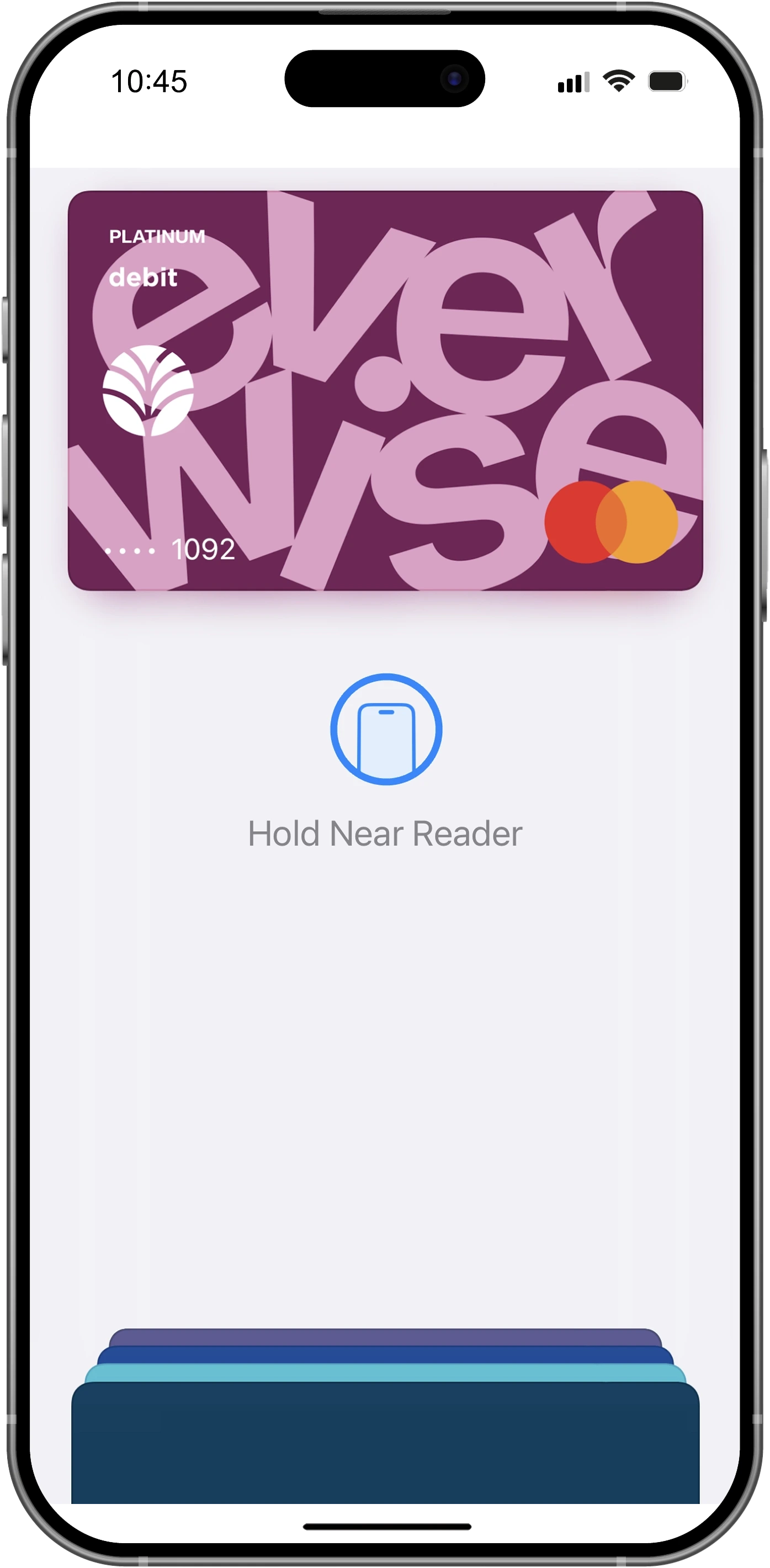
Mobile Wallet
Making a purchase with Mobile Wallet dramatically reduces fraud risk because your personal information and card numbers are encrypted and never shared with the merchant. There's no fee to use Mobile Wallet, you can add multiple cards, and all of your Everwise transactions are tracked in Mobile & Online Banking.
Getting started is easy
Apple Pay: For eligible iPhone, iPad, or Apple Watch devices*
Google Pay: For eligible Android devices*
Samsung Pay: For eligible Samsung devices*
Within the mobile app, you can add your Everwise debit or credit card information.
When you go to check out at participating merchants, restaurants, or entertainment venues, just choose the card you want to pay with, and give your phone one quick tap or swipe.
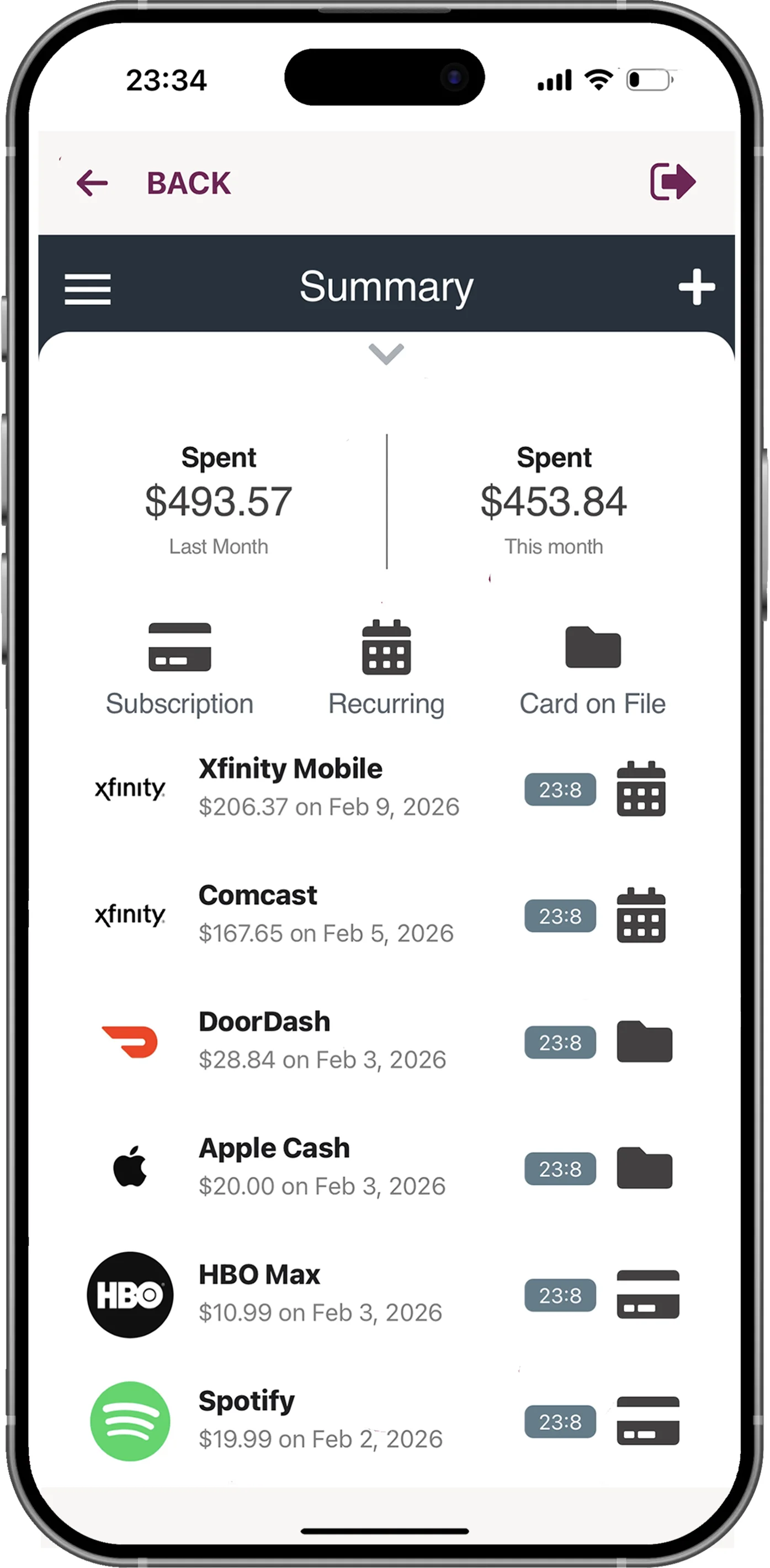
Card Connect
Card Connect helps you stay connected to your debit and credit card activity. Easily monitor and update your card information across payment apps, subscriptions, and shopping sites.
With Card Connect, you can:
- Monitor and manage all your subscriptions and recurring payments.
- View cards linked to your favorite subscriptions.
- See cards used to pay recurring bills, like insurance and utilities.
- Know where your card info is saved on file as a payment method with various websites and apps.
- Link and view your accounts from other financial institutions to manage spending across all cards inside the Everwise app.
For your subscriptions, bills, and cards on file you can also:
- View transaction history by company.
- Switch payment methods.
- Cancel subscription services.
- Contact the company.
To get started, just log into mobile or online banking, and you’ll find Card Connect in the dropdown under “Card Services” from your home screen’s navigation bar. And for more information and answers to frequently asked questions, you can visit our Card Connect Help Center.
Message & data rates may apply, please contact your provider for more information. Apple, the Apple logo, and iPhone are trademarks of Apple Inc., registered in the U.S. and other countries. Apple Pay is a trademark of Apple Inc; Google Pay is a trademark of Google Inc; Samsung Pay is a trademark of Samsung Electronics Co., LTD.
Subject to membership eligibility requirements. Loans subject to credit approval. Borrower must be a resident of Indiana or Michigan, and for home loans property must be in Indiana or Michigan. All credit union programs, rates, terms, and conditions may change without notice.